With ServiceM8
Book the job in ServiceM8. The link sends itself.
One line in your booking text. Nothing else changes.
This TurnUp is connected to a ServiceM8 account
What you get
Sam Hale Plumbing · Text Message · 07:48
Sent by ServiceM8 · Booking Confirmation
The one line
The link is the ServiceM8 job number. The customer proves it is theirs with four digits, once.
- 1
Switch on Booking Confirmation
ServiceM8 online → Settings → Automations → Booking Confirmation → on → Edit. On Method, tick Send text message confirmation.go.servicem8.com · AutomationsAutomations
Booking ConfirmationEditBooking ReminderQuote Follow UpPayment Follow UpSend by: SMS · Template: Booking Confirmation
Drawn from ServiceM8’s layout, not a screenshot.
- 2
Paste this as the Message
Hi {recipient_first}, your booking with {vendor.name} is confirmed for {booking_date}, arriving {booking_time}. Follow the job here — it says when I set off, when I arrive and when I am done, and it has the booking terms and your right to cancel:
https://www.getturnup.com/j/{job.generated_job_id}
Use Insert Field for the job number. Delete ServiceM8’s line about an estimated arrival time.The words about terms matter: a short-notice charge only holds if they agreed it before the day, and the page is where they do. Set yours under Booking terms on the dashboard.go.servicem8.com · SMS TemplatesEdit SMS Template
SMS Template FieldsSave ChangesDrawn from ServiceM8’s layout, not a screenshot.
- 3
Tick it when you book
Schedule from the job card → tick Send Booking Confirmation. ServiceM8 remembers it.Dragging a job onto the calendar sends nothing. Book from the job card.go.servicem8.com · Job 2718 · ScheduleAdd Booking
Send Booking ConfirmationCancelSave BookingDrawn from ServiceM8’s layout, not a screenshot.
- 3b
Optional: the day-before text
Settings → Automations → Booking Reminder → on → the day before → this message:Hi {recipient_first}, a reminder that {vendor.name} is booked for tomorrow, {booking_date}, arriving {booking_time}. Still fine? Tap to say so, to say someone else will be in, or to move it: https://www.getturnup.com/j/{job.generated_job_id}The page asks them at four the afternoon before either way. Each reply lands on your card and your phone. - 3c
Or let TurnUp send it
Dashboard → ServiceM8 → switch on Follow every booking. Every booking gets its card at once; ten minutes later TurnUp texts the link through ServiceM8, unless ServiceM8 already did. One text per job.A job dragged onto the calendar gets told too. Move a booking later and they get one more text with the new hours, once the move has settled. - 4
That is the setup
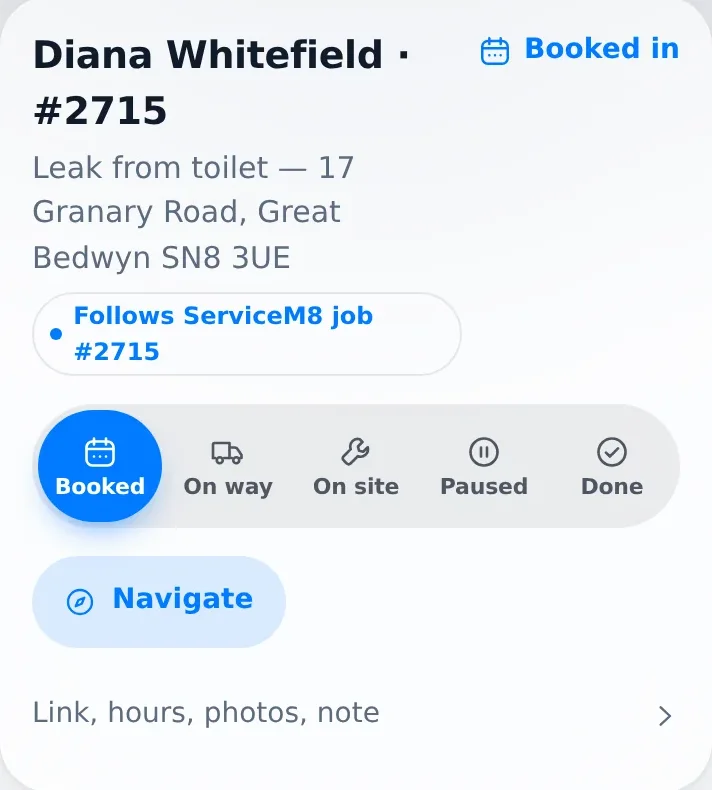
Nothing to add per job. The card appears on your dashboard the moment the customer opens the link.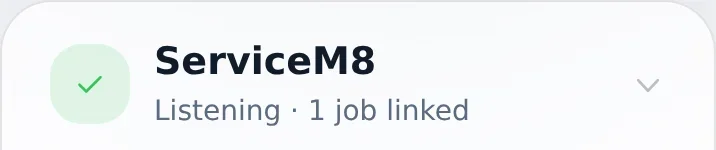
What moves the card
What you press. What they see a minute later.
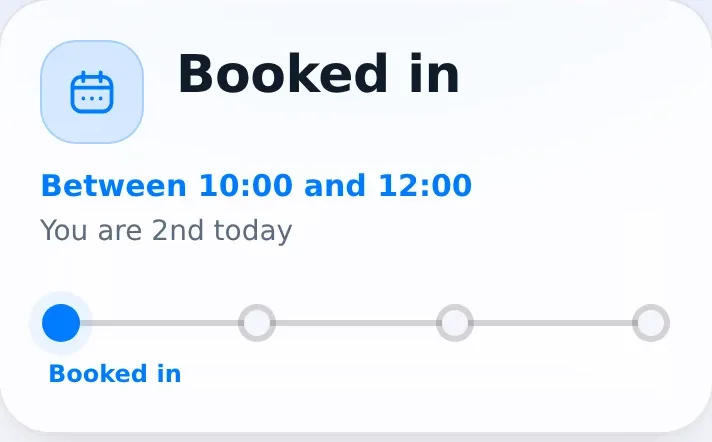
Booked in
ServiceM8 sends the text. The card carries the booking window.
Sam Hale Plumbing · Text Message · 07:48
Hi Sarah, your booking with Sam Hale Plumbing is confirmed for Thursday 16 October, arriving 09:00–11:00. Follow the job here — it moves as the day does: www.getturnup.com/j/2718 — SamSent by ServiceM8 · Booking Confirmation
The text, from ServiceM8 On my way
Your tap. ServiceM8 has no set-off event.
Your TurnUp dashboard 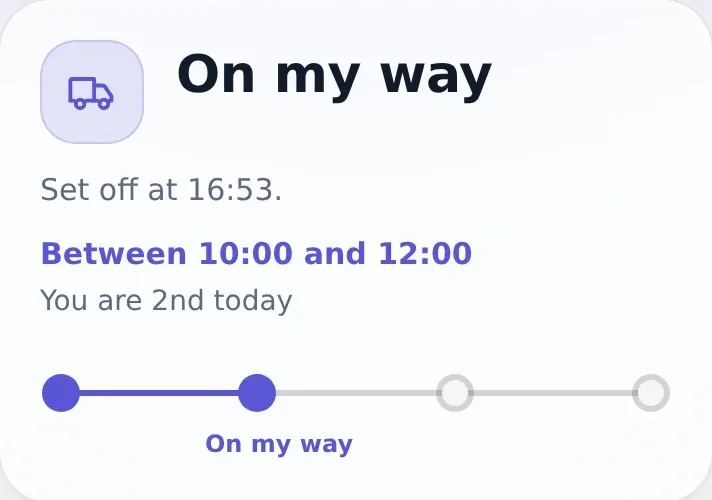
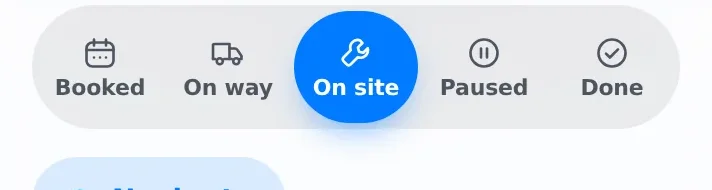
On site
Check In.
Job 2718 · Work Order
Sarah Whitfield
NavigateCheck InCheck OutComplete JobServiceM8 app, drawn 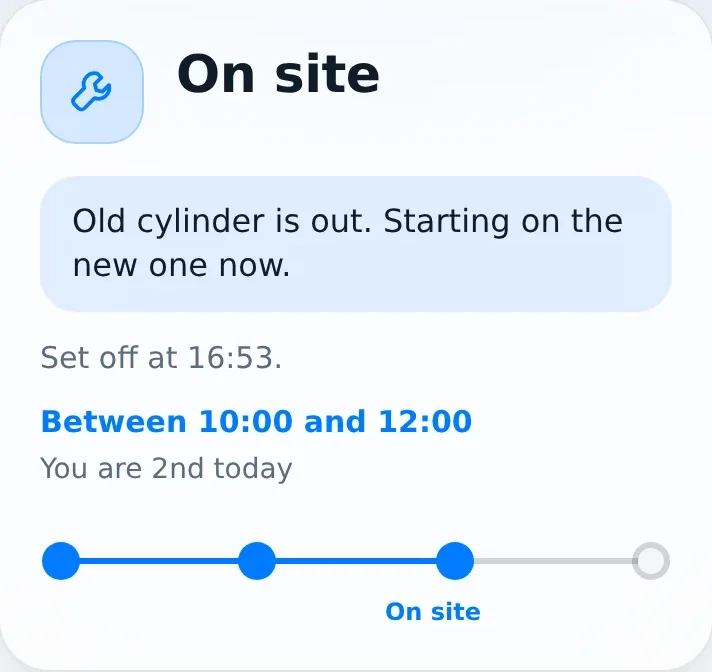
Paused
Check Out before the job is complete.
Job 2718 · Work Order
Sarah Whitfield
NavigateCheck InCheck OutComplete JobServiceM8 app, drawn 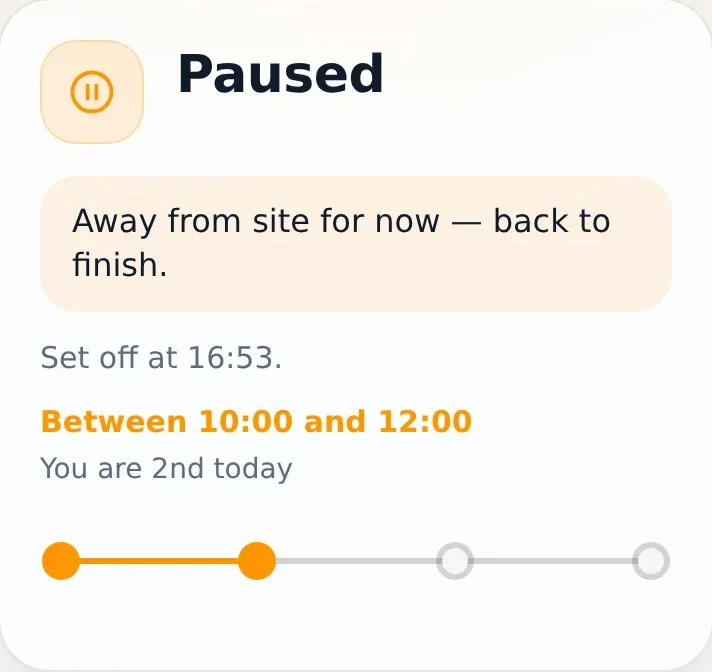
Job done
Complete Job.
Job 2718 · Work Order
Sarah Whitfield
NavigateCheck InCheck OutComplete JobServiceM8 app, drawn 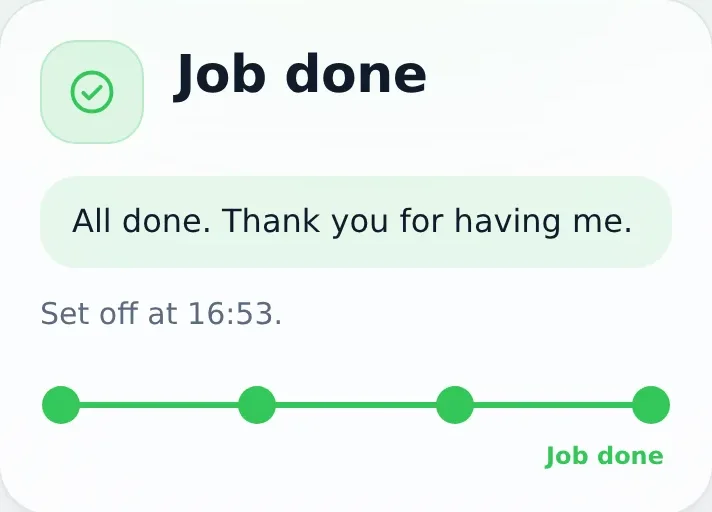
Every event is checked against the job itself. A missed webhook costs a minute, not a wrong card.
Test it in ten minutes
- 1
Make a test job for yourself
You as the contact, your own mobile, any address.Job 2718 · Work Order
Sarah Whitfield
NavigateCheck InCheck OutComplete JobContact: you, your own mobile
Drawn from ServiceM8’s layout, not a screenshot.
- 2
Book it from the job card
Schedule → a time → tick Send Booking Confirmation → Save. The text arrives in a few minutes.go.servicem8.com · Job 2718 · ScheduleAdd Booking
Send Booking ConfirmationCancelSave BookingDrawn from ServiceM8’s layout, not a screenshot.
- 3
Tap the link, type four digits
You land on Booked in, with the day. Your dashboard has the job, linked.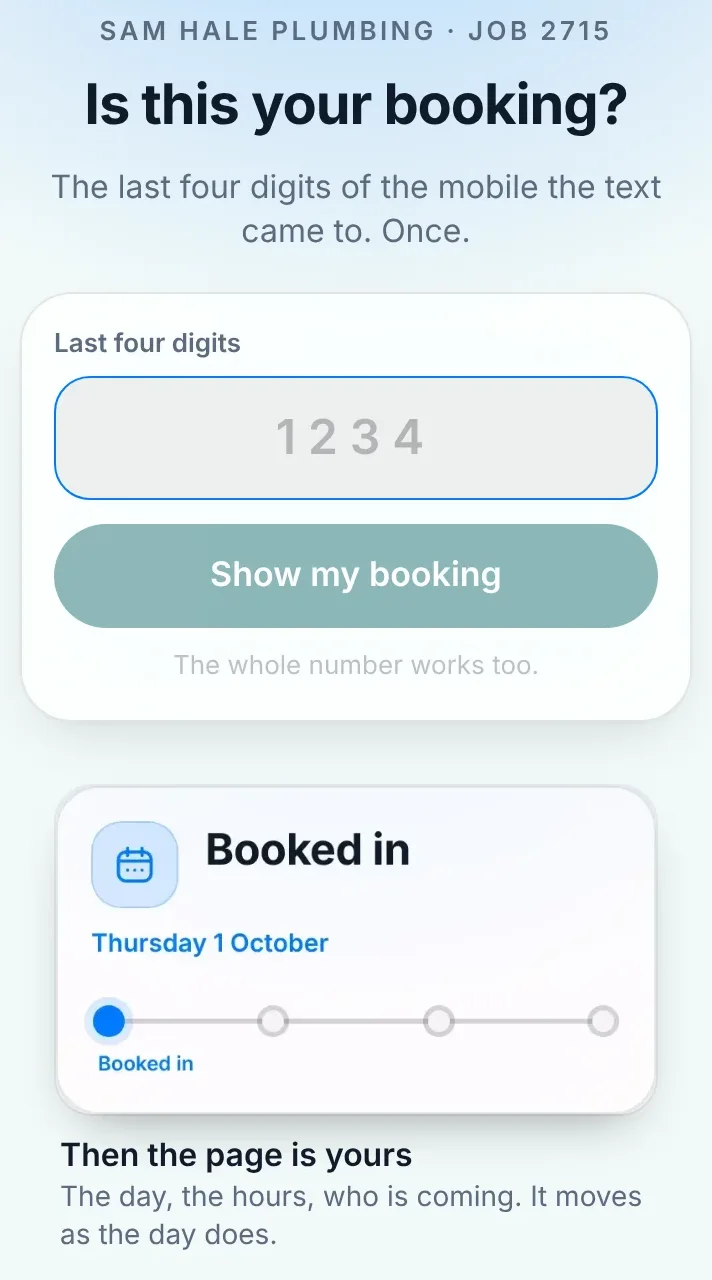
- 4
Work the job in the ServiceM8 app
Check In → On site. Check Out → Paused. Complete → Job done. Set off is your tap on the dashboard.Job 2718 · Work Order
Sarah Whitfield
NavigateCheck InCheck OutComplete JobDrawn from ServiceM8’s layout, not a screenshot.
- 5
Watch it happen
Dashboard → ServiceM8 → Lately. If a stage does not move, that log says why.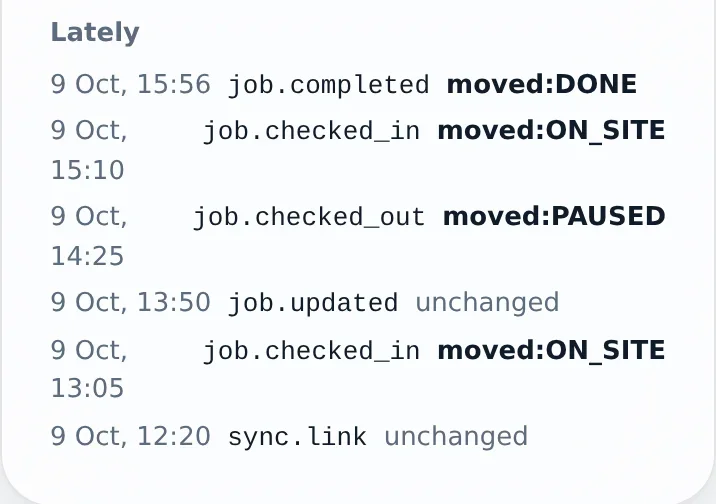
What it does not do yet
On my way from ServiceM8’s Navigate.
Next build, once the connector has run on real jobs.
Job 2718 · Work Order
Sarah Whitfield
NavigateCheck InCheck OutComplete JobNext
- Jobs booked before today. Work the moment a customer opens a link, or add them by job number.
- Quotes. The link says “not booked in yet” until the job is a Work Order.